How to Fix Headphone Speaker Not Working (One Side or Both)
To fix a headphone speaker that is not working on one or both sides, first inspect and center your operating system audio balance slider. For wired headphones, clean the 3.5mm plug and test for cable strain relief breaks. For Bluetooth headphones, unpair and perform a full factory reset to clear firmware sync errors.
Why This Happens
Step-by-Step Fix
Check System Audio Balance in Accessibility Settings
On Android, navigate to Settings > Accessibility > Audio / Hearing Enhancements. Inspect the Left / Right audio balance slider—if this slider was accidentally bumped to either extreme, one headphone earbud will remain completely silent. On Windows, open Sound Settings > Device Properties > Balance and ensure Left and Right channels are matched.
Clean the 3.5mm Plug & Inspect for Cable Strain Damage
Wipe the metal 3.5mm jack with a drop of 99% isopropyl alcohol on a microfiber cloth to remove oily film and oxidation. While playing audio, gently bend the wire near the connector plug and near the earbud housing. If sound cuts in and out or crackles as you wiggle the wire, internal copper strands have snapped.
Clean Earwax and Debris From the Earbud Mesh
In-ear earbuds frequently become blocked with impacted cerumen (earwax) and dust, reducing volume by over 80% on the affected side. Remove silicon ear-tips and use an alcohol prep pad and a dry, clean toothbrush held downward to flick away wax residue.
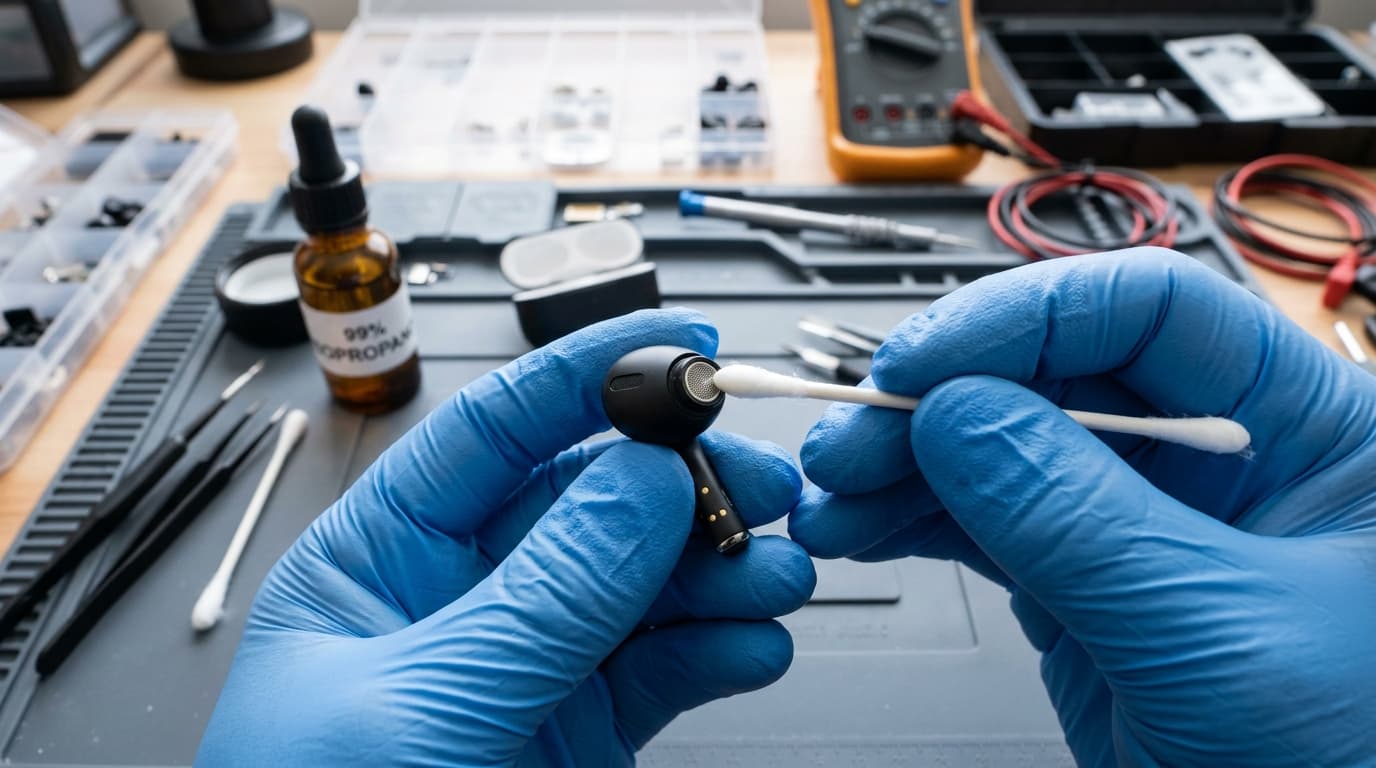
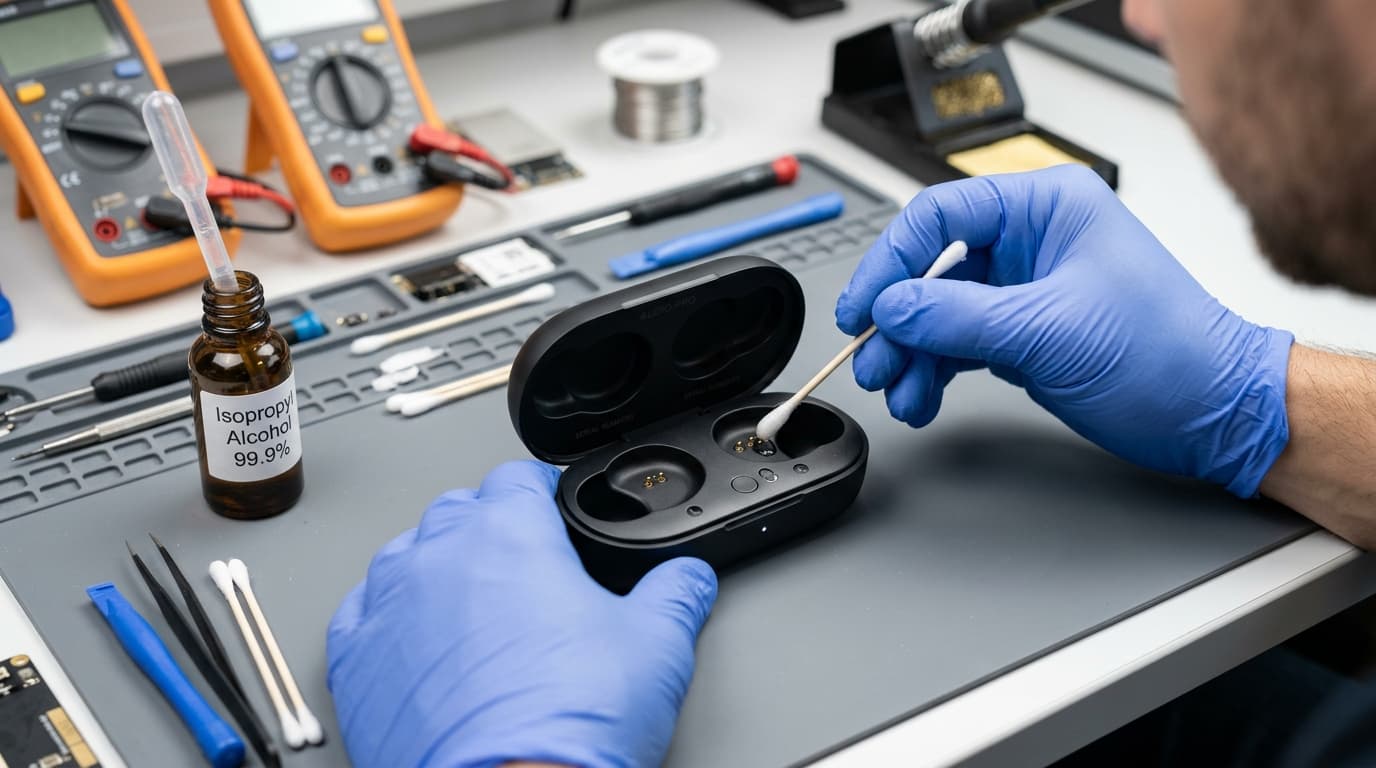
Clean Charging Pins & Perform a Full Factory Reset (Bluetooth)
For wireless TWS earbuds, clean the magnetic gold charging contacts inside the case and on the earbuds using a dry cotton swab. Place both earbuds into the case, hold the pairing or case button down for 10 to 15 seconds until the LED flashes red/white, indicating a factory reset has restored master-slave pairing.
Forget Device and Clear Bluetooth System Cache
In your smartphone Bluetooth settings, tap the settings cog next to your headphones and select "Unpair" or "Forget Device". On Android, go to Settings > Apps > System Apps > Bluetooth > Storage > Clear Cache. Restart your phone, re-enter pairing mode on the headphones, and pair afresh.
Disable Absolute Volume or Switch Bluetooth Audio Codec
Enable Developer Options on Android (Settings > About Phone > tap Build Number 7 times). Scroll to Networking and toggle "Disable Absolute Volume" to on. You can also temporarily switch the Bluetooth Audio Codec from LDAC/AAC to SBC to resolve packet streaming dropouts.