How to Fix Laptop Speaker Not Working (Windows & Mac)
To fix a laptop speaker with no sound, first check that the correct playback device is selected in the taskbar audio menu. Next, restart the Windows Audio service, run the built-in Audio Troubleshooter, update your Realtek High Definition audio driver, and ensure the 3.5mm headphone jack sensor is not mechanically stuck.
Why This Happens
Step-by-Step Fix
Verify Default Playback Device & Physical Mute Key
Check the function key row (F1-F12) for a hardware audio mute button with an LED indicator (common on HP, Dell, and ThinkPad laptops). Next, click the speaker icon on the taskbar, click "Select a sound output", and make sure "Speakers (Realtek Audio)" is selected—not an external HDMI monitor or virtual audio cable.
Run the Automated Windows Audio Troubleshooter
Go to Settings > System > Sound > Troubleshoot (or right-click the speaker icon in the bottom right tray and select "Troubleshoot sound problems"). Windows will automatically test playback, verify audio device status, and attempt to reinitialize muted software endpoints.
Restart the Windows Audio Service (audiosrv)
Press Windows Key + R, type "services.msc", and hit Enter. Scroll down to find "Windows Audio". Right-click it and select "Restart". Also verify that its Startup type is set to "Automatic". Do the same for the "Windows Audio Endpoint Builder" service.
Reinstall or Roll Back Realtek Audio Driver in Device Manager
Right-click the Start button and click Device Manager. Expand "Sound, video and game controllers". Right-click your audio chip (e.g. Realtek Audio) and choose "Uninstall device". Check the box to attempt driver removal if corrupted, then reboot your laptop. Windows will automatically reinstall a fresh, clean audio driver upon restart.
Inspect 3.5mm Headphone Jack and Speaker Grilles
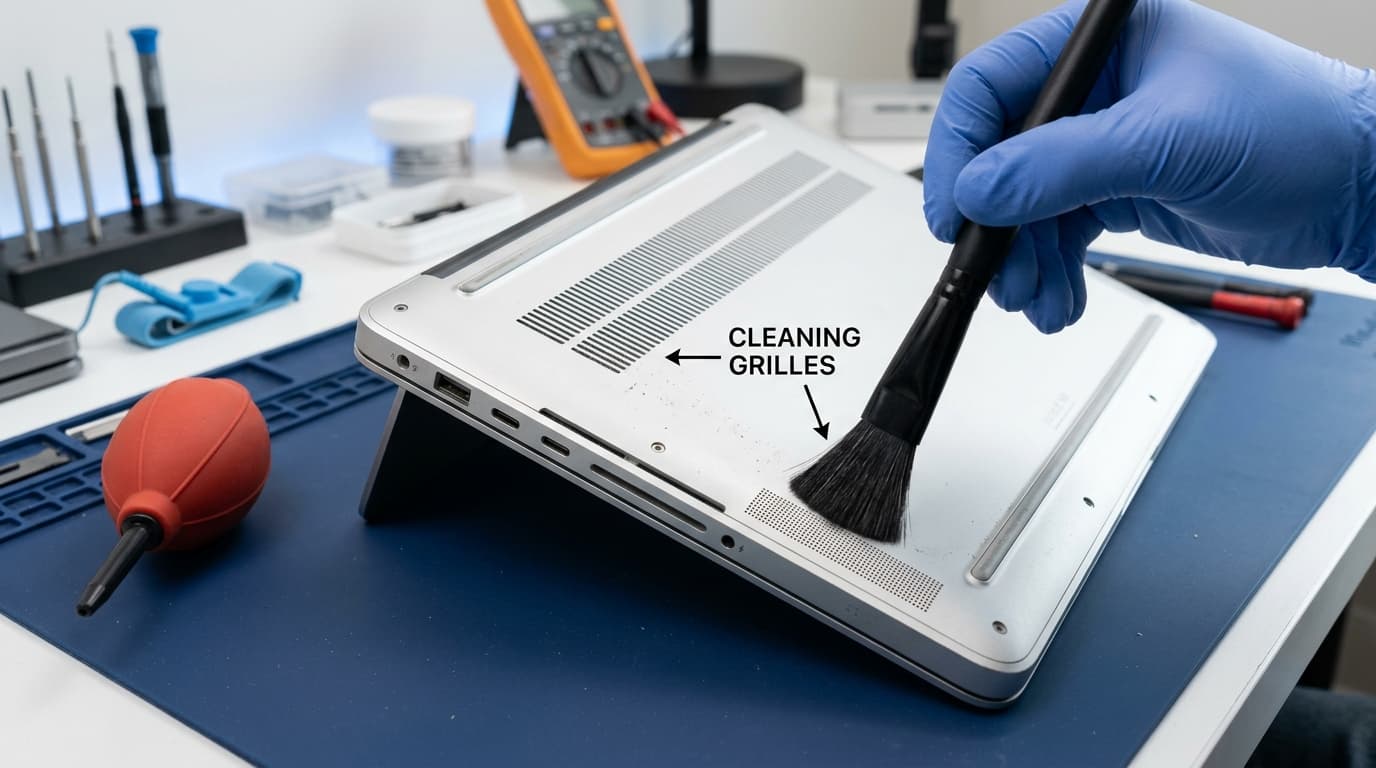
If you frequently use wired earphones, plug a 3.5mm cable in and out 4 to 5 times smoothly. This dislodges any oxidation or physical debris that may be holding the analog headphone detection switch in an open circuit. Gently sweep laptop underside acoustic vents using an anti-static brush and bulb blower.
Boot Into BIOS / Diagnostics to Test Pure Hardware
Restart your laptop and tap F12 (Dell), F2 (Lenovo/ASUS), or Esc (HP) to enter the UEFI Hardware Diagnostic menu. Run the built-in audio/speaker diagnostic tone. If sound plays during BIOS tests, your speaker hardware is 100% healthy, meaning any audio loss in Windows is strictly a software or driver bug.