Speaker Has No Sound At All? Here's the Fix
If your speaker produces no sound at all, first verify that hardware mute is off and audio output isn't routed to ghost Bluetooth devices. Next, reboot your system to restart frozen audio services, reinstall your audio drivers, and inspect the physical speaker grille for deep blockage.
Why This Happens
Step-by-Step Fix
Check Mute, DND, and Output Device Selection
Verify that Do Not Disturb (DND) or Silent mode is toggled off. On Windows, click the speaker icon in your system tray and verify the volume slider is above zero and not muted (red cross icon). Confirm that "Realtek High Definition Audio" or your internal speakers are selected as the default playback device, not a monitor HDMI output.
Disconnect Bluetooth Devices and Check Headphone Jack
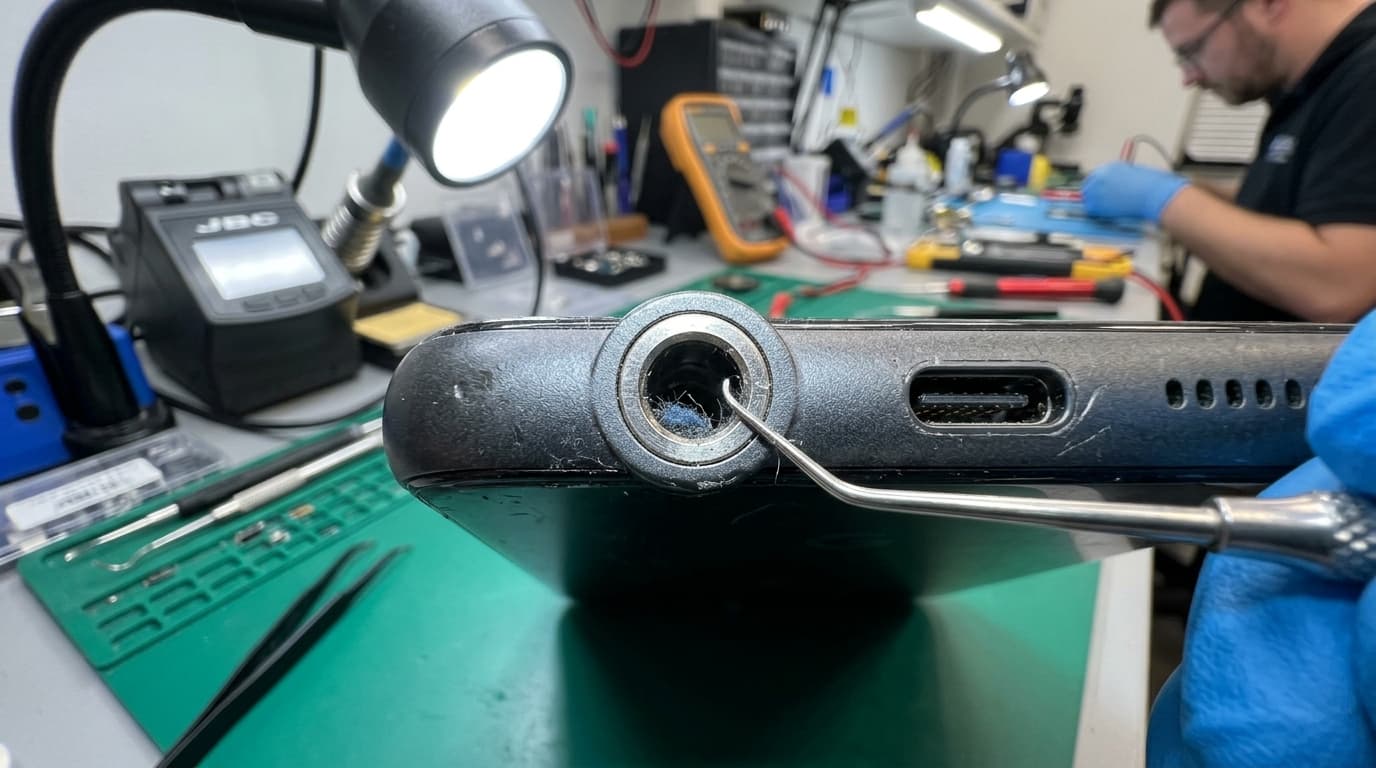
Turn off Bluetooth entirely in Quick Settings. Many smartphones remain silently connected to boAt neckbands, car head units, or smart speakers in an adjoining room. If your phone has a 3.5mm jack, shine a flashlight inside: pocket lint can jam the mechanical switch, leaving the device permanently trapped in "Headphone Connected" mode.
Perform a Complete Device Restart (Soft Reset)
A system reboot clears stuck low-level audio daemons (such as Android AudioServer or CoreAudio on Mac). Hold the power button and select Restart. For stubborn glitches, perform a hard reboot by holding Power + Volume Down for 10-12 seconds until the brand logo appears.
Update or Roll Back Audio Drivers (PC and Laptop)
On Windows, right-click the Start button and open Device Manager. Expand "Sound, video and game controllers". Right-click Realtek Audio (or High Definition Audio Device) and choose "Update driver" > "Search automatically". If sound vanished immediately after a recent Windows update, choose "Properties" > "Driver" tab > "Roll Back Driver".
Isolate Hardware by Testing With Wired/Wireless Headphones
Connect earphones or an external USB DAC. If audio plays through headphones, your motherboard DAC, sound card, and operating system audio pipeline are functioning normally. This narrows down the failure directly to the internal speaker component or its ribbon cable.
Inspect Speaker for Physical Water or Impact Damage
Check if the phone recently came into contact with liquids or experienced a drop. If moisture entered the chassis, the speaker coil circuit may be temporarily disabled by short-circuit protection. Refer to our Water Damage Recovery Guide or check for severe dust compaction in our Dust Cleaning Guide.