How to Fix Low Speaker Volume
To fix low speaker volume, first disable Absolute Volume or Volume Limiters in your sound settings. Next, inspect your device case to ensure speaker cutouts are not obstructed, turn off competing equalizer profiles, and clean the speaker mesh. If volume remains quiet, reset audio preferences.
Why This Happens
Step-by-Step Fix
Check Volume Limiter and Accessibility Settings
On Android, navigate to Settings > Sound & Vibration > Volume > 3-dots menu > Media Volume Limit and ensure it is turned off. On iPhone, go to Settings > Sounds & Haptics > Headphone Safety and verify Reduce Loud Audio is adjusted appropriately. Check Accessibility > Audio/Visual and confirm the Left/Right balance slider is centered.
Inspect Phone Case and Screen Protector Cutouts
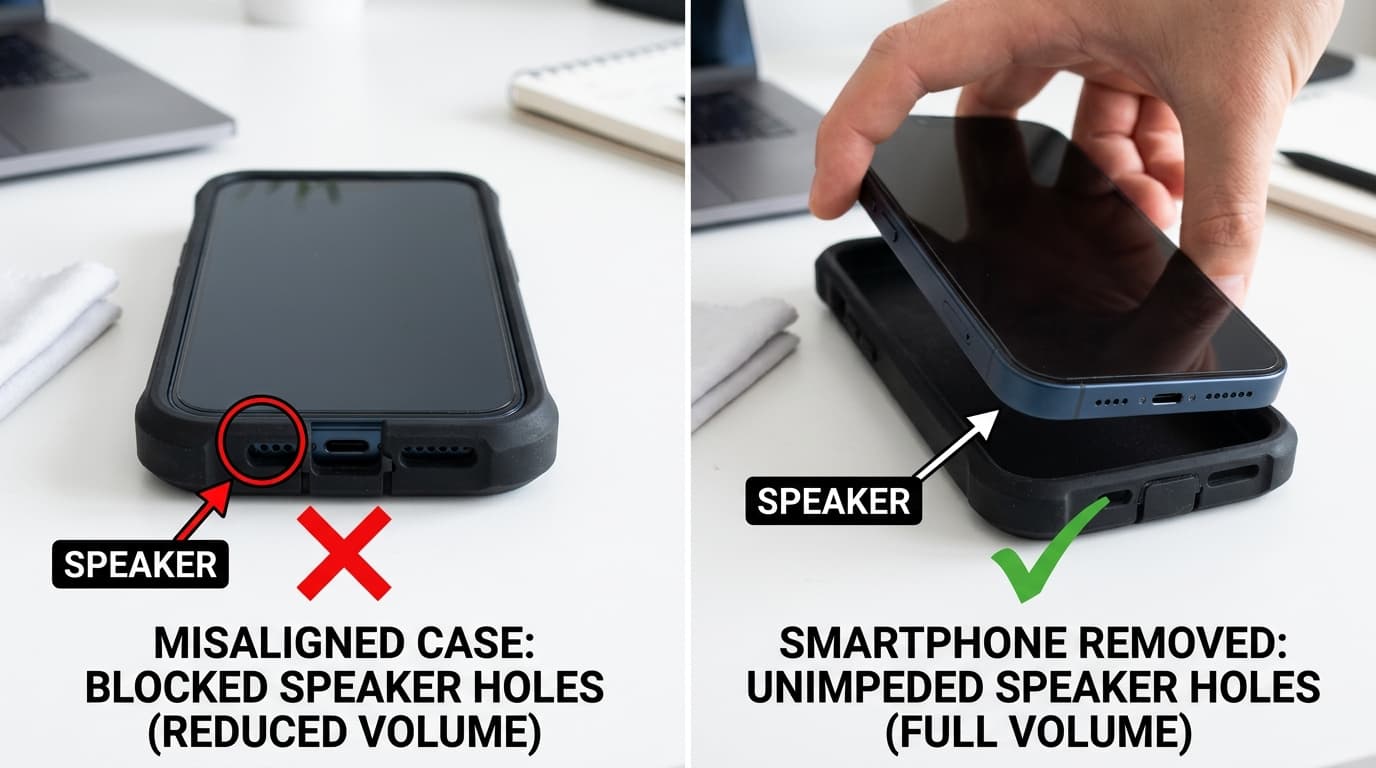
Remove your case and tempered glass screen protector temporarily. Inexpensive cases often feature misaligned acoustic ports or lack adequate bottom cutouts, severely throttling audio projection. Test playback with the bare phone to see if volume immediately jumps.
Disable Third-Party Equalizers & Volume Overrides
Audio booster apps, custom equalizers, or system profiles like Dolby Atmos, Dirac Audio, or Xiaomi Sound Effects can introduce gain reduction or software compression. Temporarily switch audio profile to "Standard" or "Flat" and turn off any background sound equalizer apps.
Test With Headphones to Isolate Hardware vs System
Plug in wired earphones or pair Bluetooth earbuds. If audio plays loud and clear through headphones but remains quiet through the built-in speaker, the issue is physical speaker degradation or mesh clogging. If both headphones and speaker are quiet, you have an operating system audio pipeline glitch.
Clean the Speaker Grille Thoroughly
A layer of dry dust or lint can reduce sound output without completely silencing the speaker. Use a dry, soft toothbrush to brush out the acoustic mesh, or run a 165Hz ejection sound wave. If you suspect dust buildup, refer to our comprehensive Dusty Speaker Guide.
Reset Network and Audio Settings
As a final non-destructive step, perform an audio/network settings reset. On Android: Settings > System > Reset Options > Reset Wi-Fi, Mobile & Bluetooth. On Windows: Settings > System > Sound > Volume mixer > Reset sound devices and volumes for all apps to the recommended defaults.